01
Downloaded courseUdemy zip, torrent, bootcamp dump � a folder of videos on disk.
Desktop app � Offline courses � Windows
Study
Stream
Organize your offline courses, pick up exactly where you left off, take timestamped notes, and learn with AI � all from one desktop app.
Inside the app
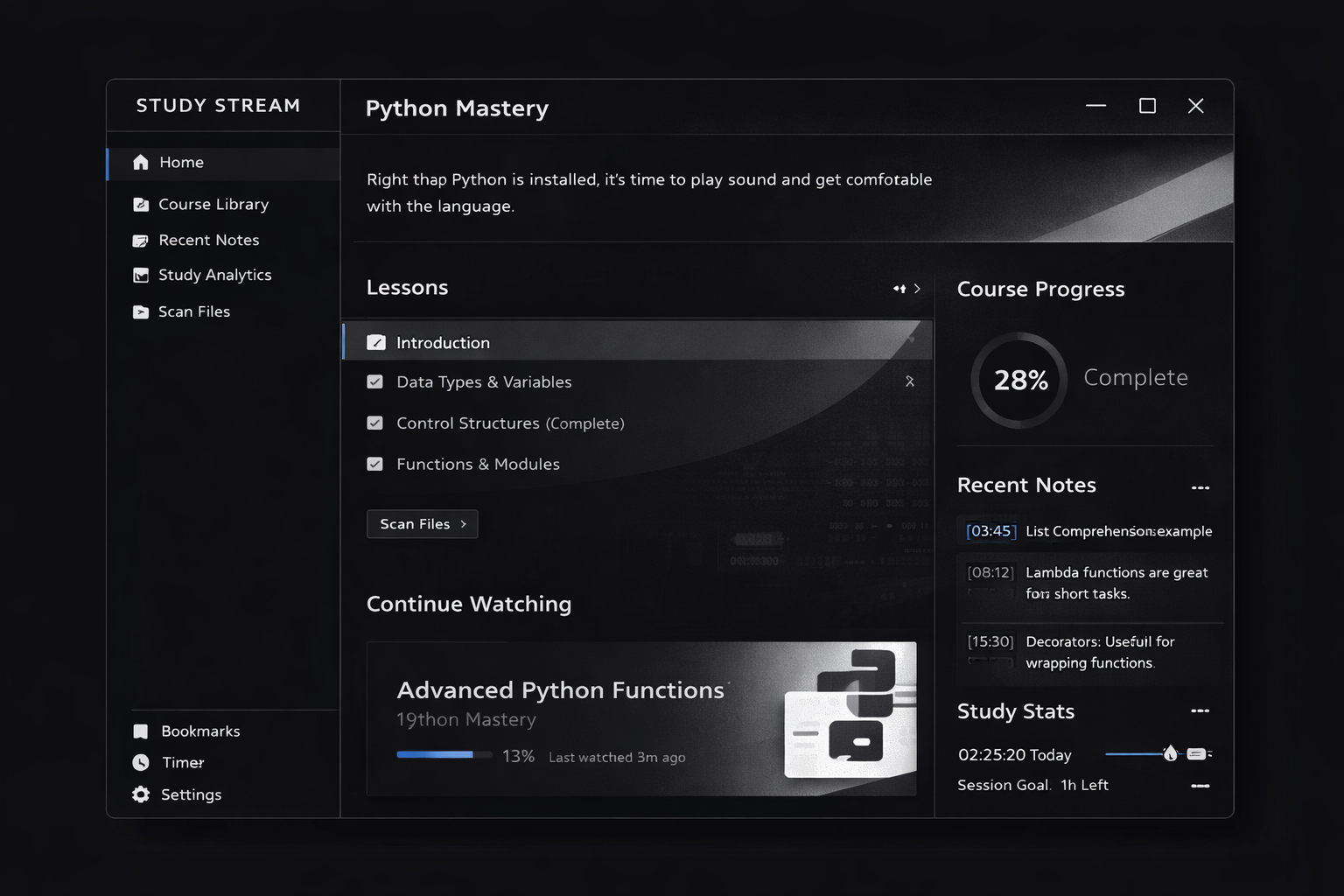
Continue Learning, progress, lessons, notes, AI, and quizzes � not six different apps.
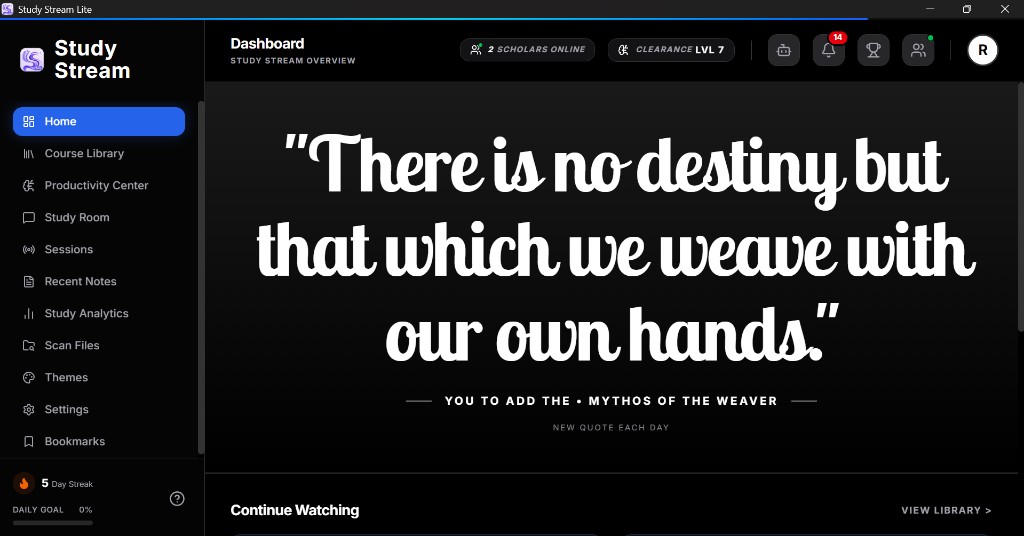
Library
Study Stream does not host your videos. You already downloaded them. Point the app at the folder � it scans the disk and builds a library of courses, sections, and lessons.
Match the subtitle filename to the video so AI can read that lesson. Then Scan Files.
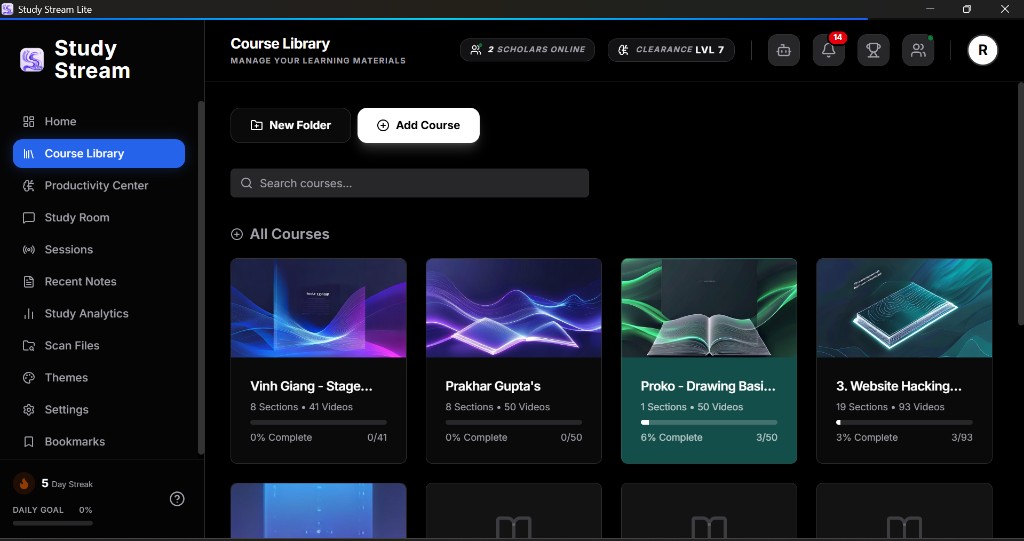
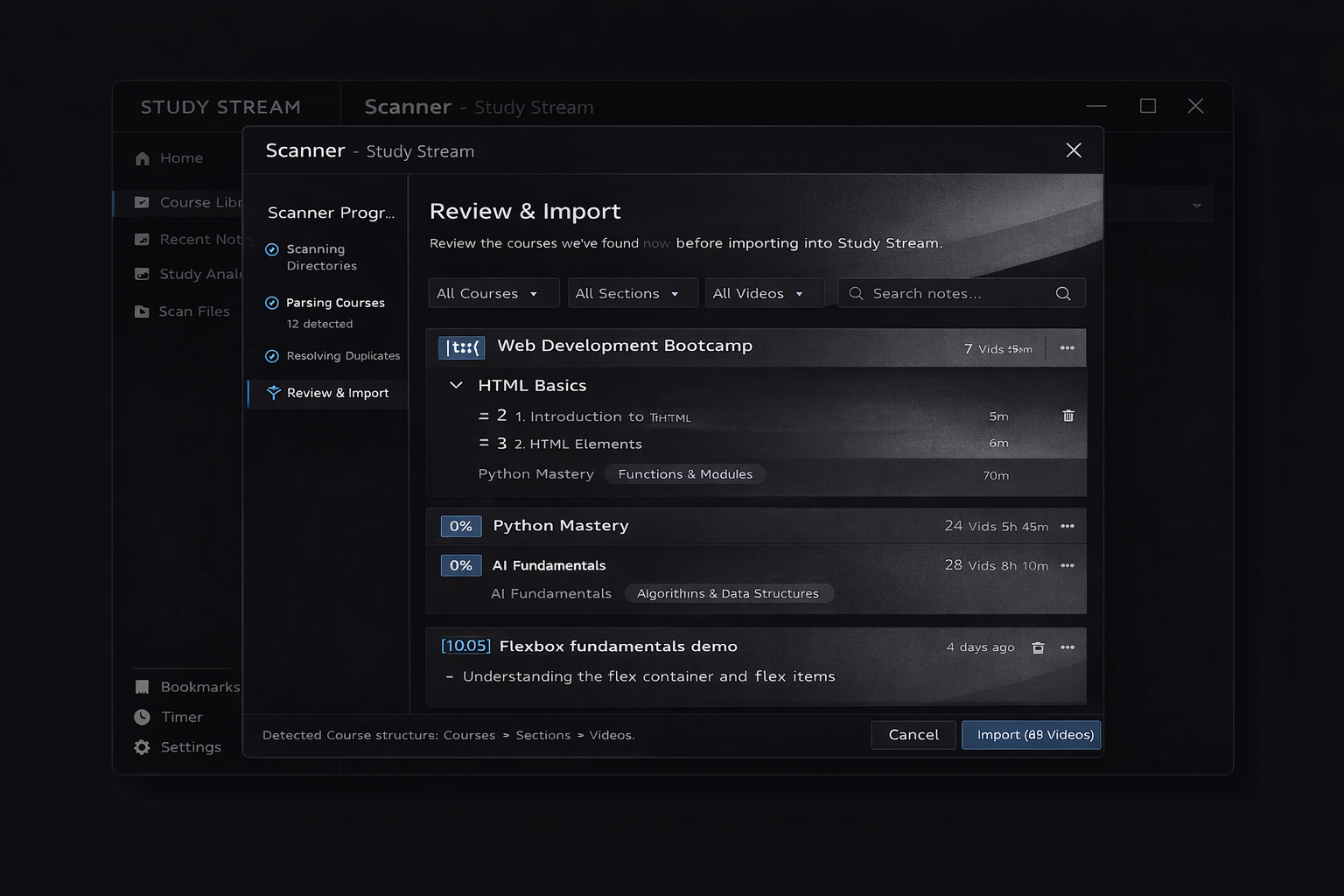
Structure your course with sections and videos.
Resume
Closing the app does not lose your place. Study Stream stores the lesson and the playback position. Continue Learning on the home screen, or hit Continue on a course card.
Stay on the lesson. The rest of the internet can wait.
Player
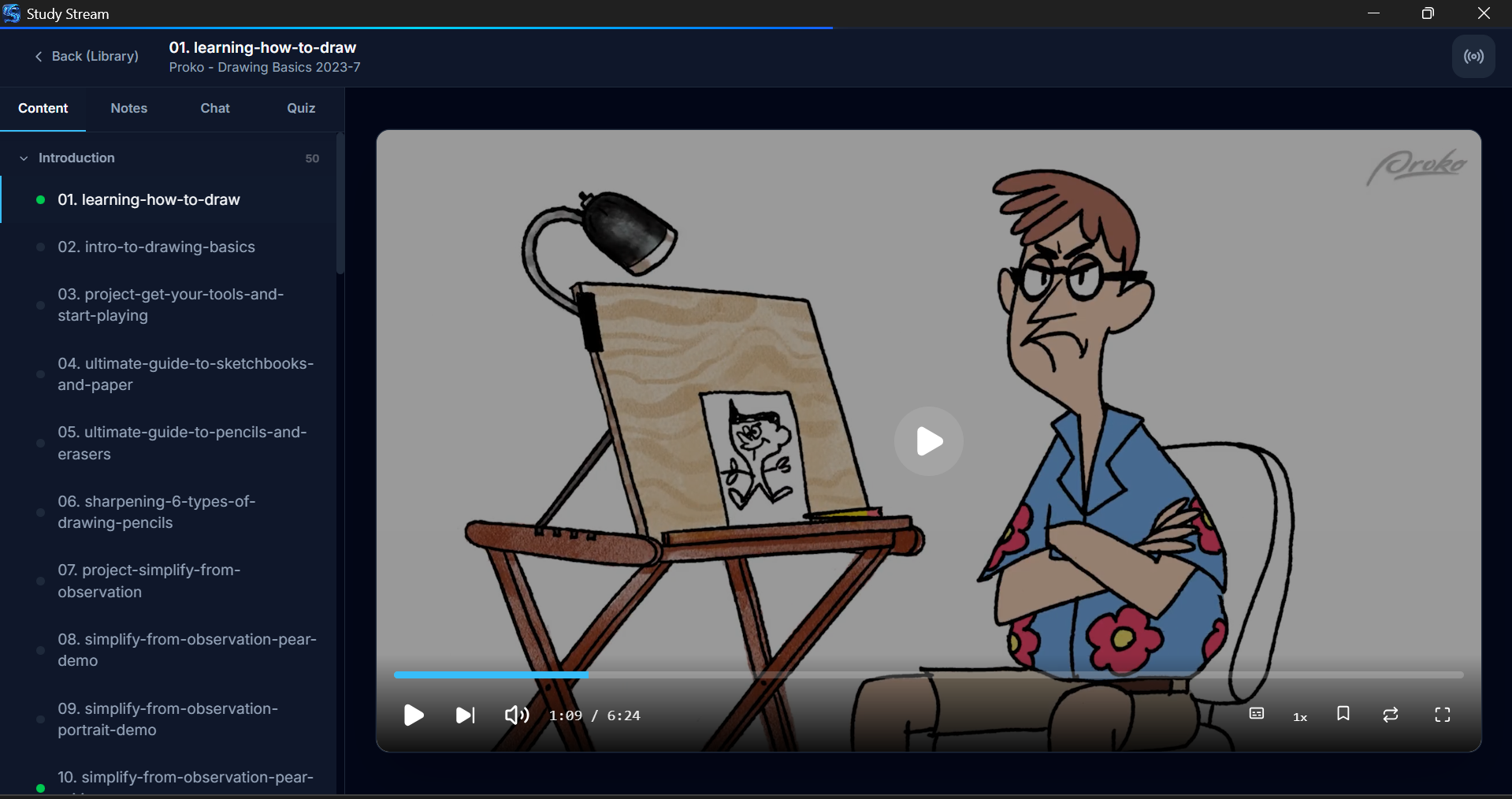
The same lesson has four tabs: Content, Notes, Chat, and Quiz. Notes and AI stay beside the video. You do not switch to Notion, ChatGPT, or a quiz site.
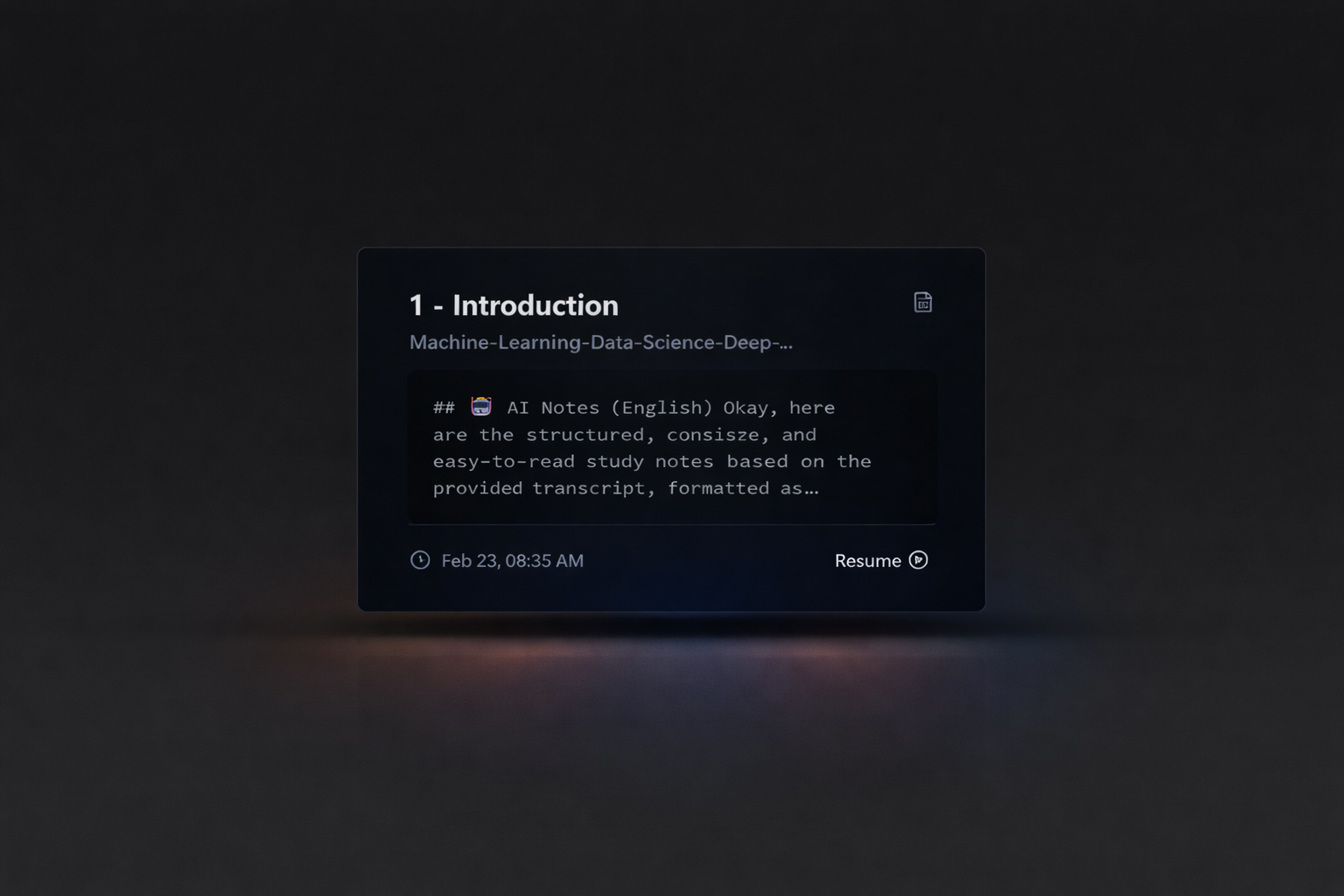
Click a note later � the video seeks to that second. Bookmark with B.
@my_decorator above a function. A decorator takes a function and returns a wrapped version, so you can add logging or checks without changing say_hello() itself. The inner wrapper(*args, **kwargs) is what actually runs.
Context: current course / current lesson transcript
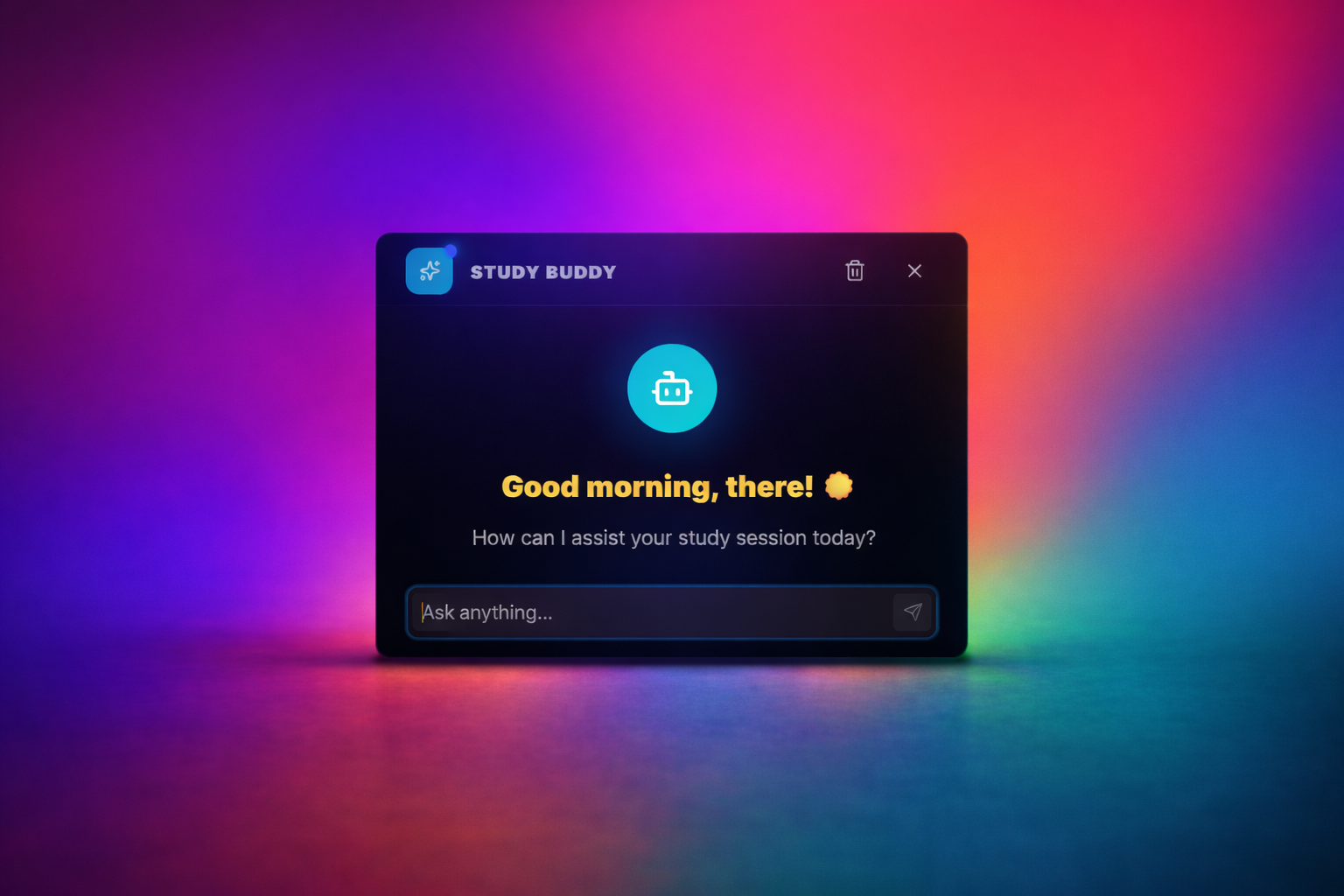
What does a Python decorator return?
Generated from the same subtitle context as Chat � not a generic trivia bank.
Course-aware AI
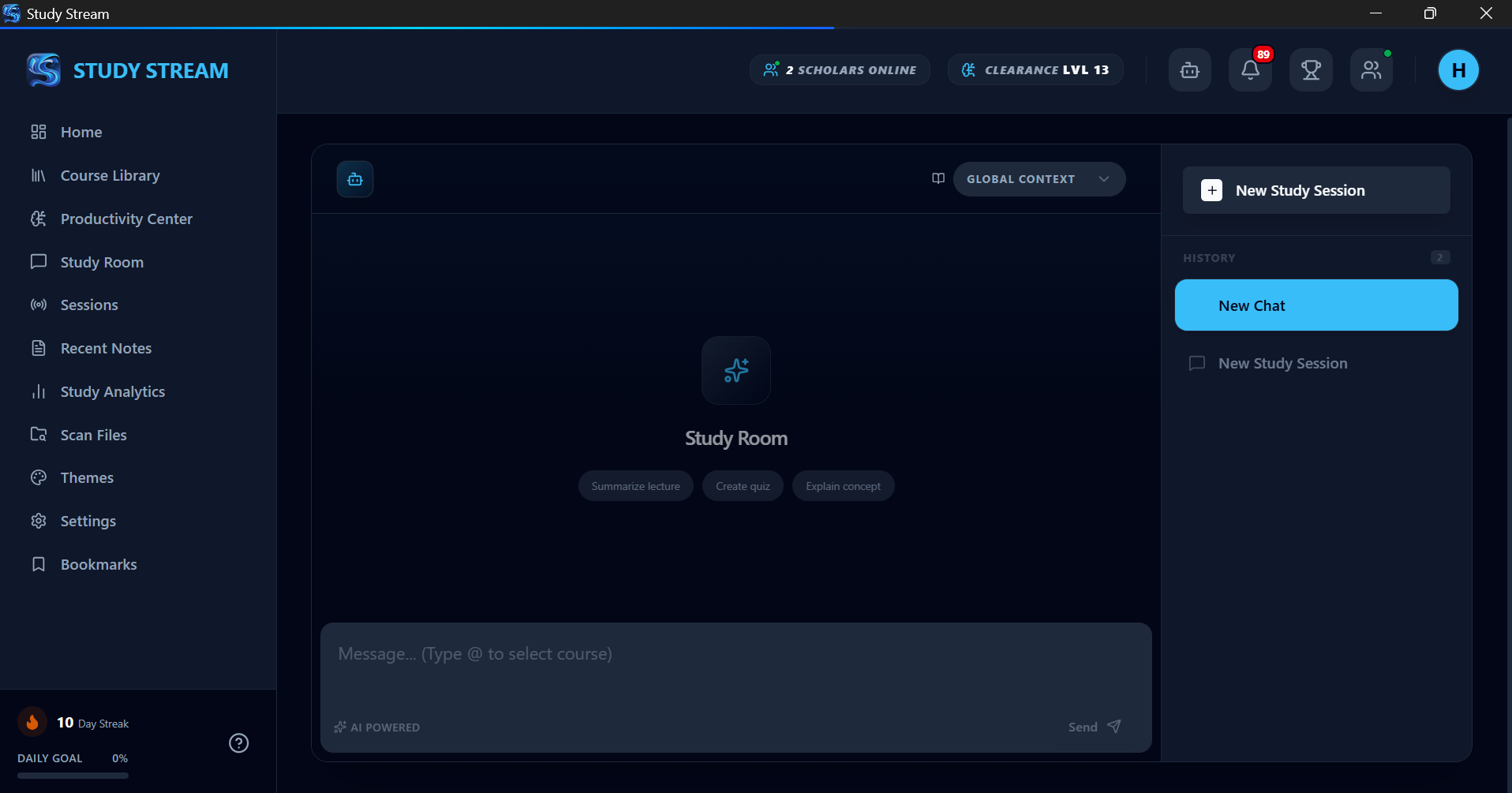
When Chat is open on a video, the assistant reads that lesson�s .srt / .vtt file. It can explain the last concept, summarize the lecture, or build a quiz from what the instructor actually said.
wrapper runs first, then your original function, then any cleanup. That is why logging or timing can wrap homework solutions without copying the function body.
Source: Python Mastery ? Functions ? Decorators.srt
Offline by design
No cloud upload. No internet required to watch your courses. Study Stream is a player and a library for files you already have.
01
Downloaded courseUdemy zip, torrent, bootcamp dump � a folder of videos on disk.
02
Study StreamScan Files reads the folder. Courses, sections, lessons appear in the library.
03
LearnWatch, resume, note, quiz. Playback never waits on a CDN.
Nothing is uploaded to Study Stream�s servers to watch a lesson. The path is local.
Asking the model needs a key and a network. The course itself still plays with Wi-Fi off.
Electron on Windows today. Your library, notes, and progress live with the app, not a browser tab.
Progress
Progress is not a vanity dashboard. It answers: which course, which lesson, how far, and whether you studied today.
Why Study Stream
VLC plays a file. Explorer stores a file. Neither remembers the course, the timestamp, your notes, or whether you understood the last chapter.
| Job | Folders + VLC | Study Stream |
|---|---|---|
| Start a course | Open a nested folder, guess the next MP4 | Library card with sections already parsed |
| Resume | You remember the filename and scrub the timeline | Continue Learning restores lesson + position |
| Notes | Another window, no link to the second in the video | Ctrl+N at 14:32 � click later to seek there |
| Ask a question | Paste into a generic chatbot with no lesson context | AI reads this lesson�s subtitles |
| Check yourself | None | Quiz tab from the same transcript |
| Watch offline | Yes, if the file is local | Yes � that is the whole product |
A lighter desktop build of the same idea: local courses, a real player, notes, and course-aware AI � without the Electron weight.
Black stays the full studio: themes, Hall of Fame, productivity center. Lite is the focused Windows library player � download Tauri v1.0.8 or visit lite.studystream.online.
Windows � Free � Open source
Install Study Stream, scan one course folder, and resume tomorrow at the same second.
Connect with me
Software developer in Jaipur � the person who built Study Stream. Work, writing, and the rest of the stack live on my site.
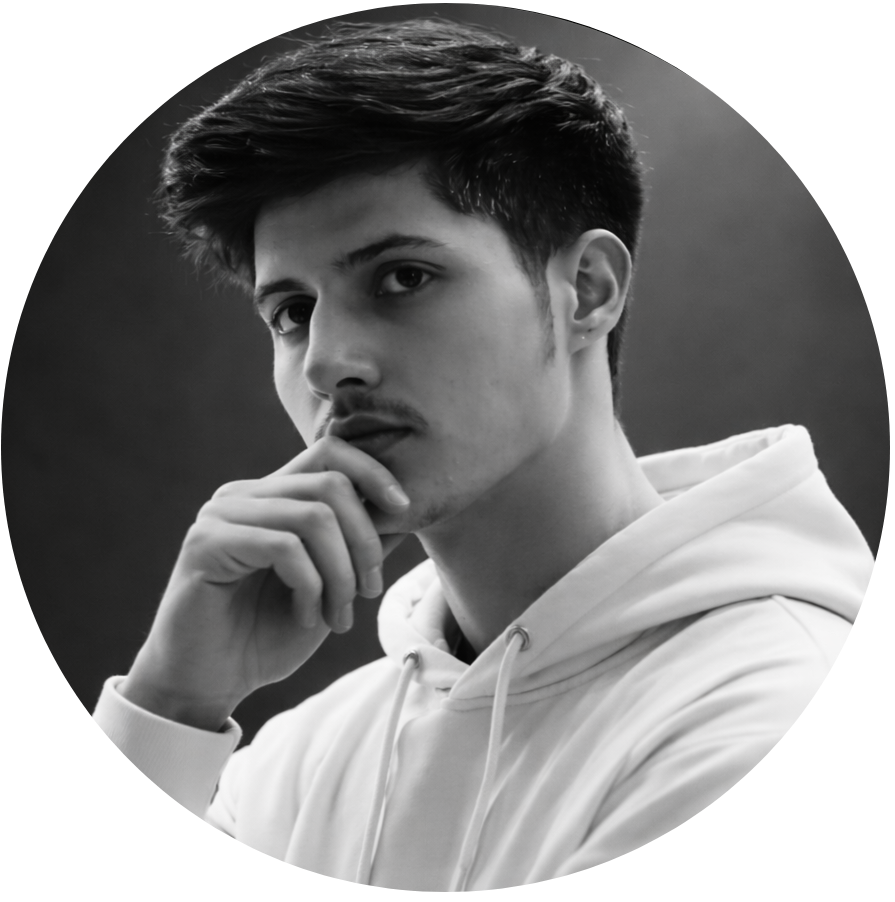
Software & web developer � Next.js, MERN, Electron, Tauri
I�m 22, a BCA student at Sri Balaji College of Engineering and Technology, and currently a software developer at Hopdays. About a year shipping full-stack products, desktop apps, and AI features that actually get used � Study Stream is the flagship.